Pushing Games from Bash to itch.io with butler
This guide sets up a Bash space so the bot can upload your games to itch.io using butler, itch.io’s official upload tool. You only do the setup once per space, plus a few settings once per game.
How to read the screenshots
- 🟧 Orange: click or type here. The number matches the step in this guide.
- 🟨 Yellow: optional, or your choice.
- 🟩 Green: already set correctly. Just check it and leave it as is.
What you need
- An itch.io account: https://itch.io/register
- A Bash.tv space that you own
- A game page on itch.io. A draft is fine (see Part 3).
Part 1: Get your itch.io API key
The API key lets butler upload to your itch.io account.
- Sign in to https://itch.io.
- Click your profile picture / username in the top-right corner, then Settings.
- In the left menu, under Developer, click API keys. Direct link: https://itch.io/user/settings/api-keys
- Click Generate new API key.
- Click View next to the new key, then copy it.
Important:
- The key works for your whole itch.io account, so it can’t be limited to one game.
- Never paste it into the Bash chat. Everyone watching the space can see the chat.
- If it ever leaks, go back to this page and click Revoke next to the key, then make a new one.
Part 2: Add the key to your Bash space
-
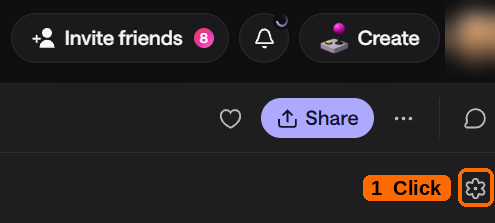
In your Bash space, click the gear icon next to the chat box.
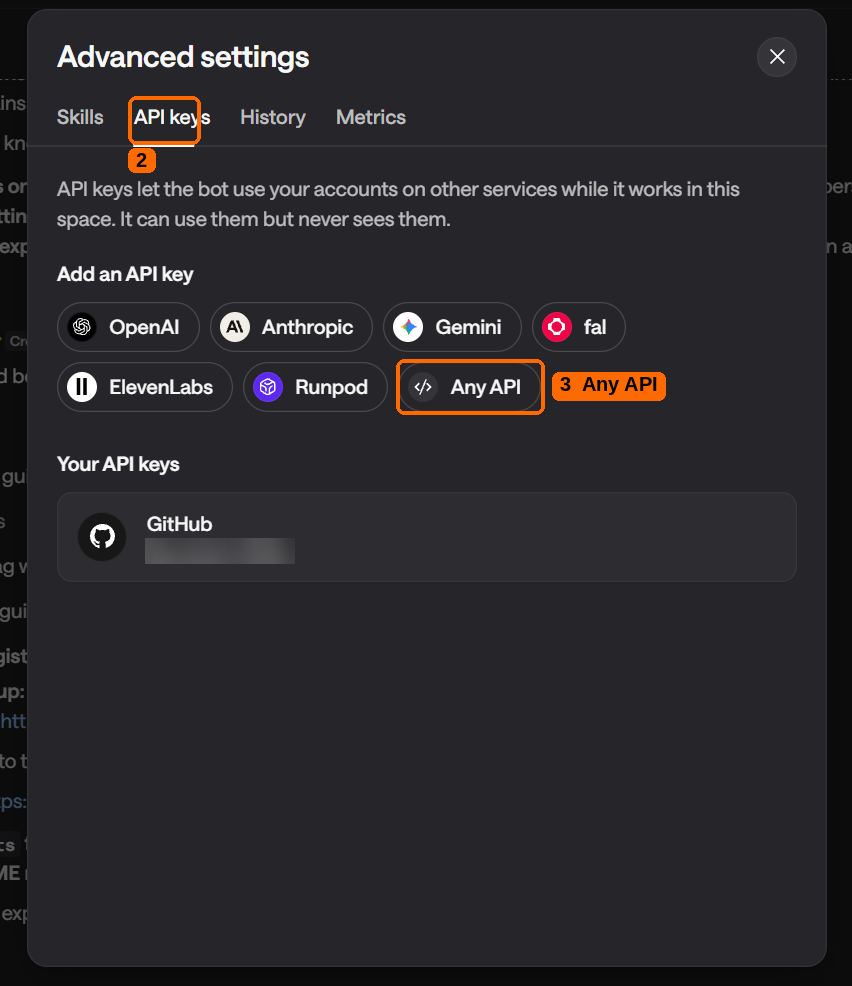
- Open the API keys tab.
-
Under Add an API key, click Any API.
-
Fill in the form:
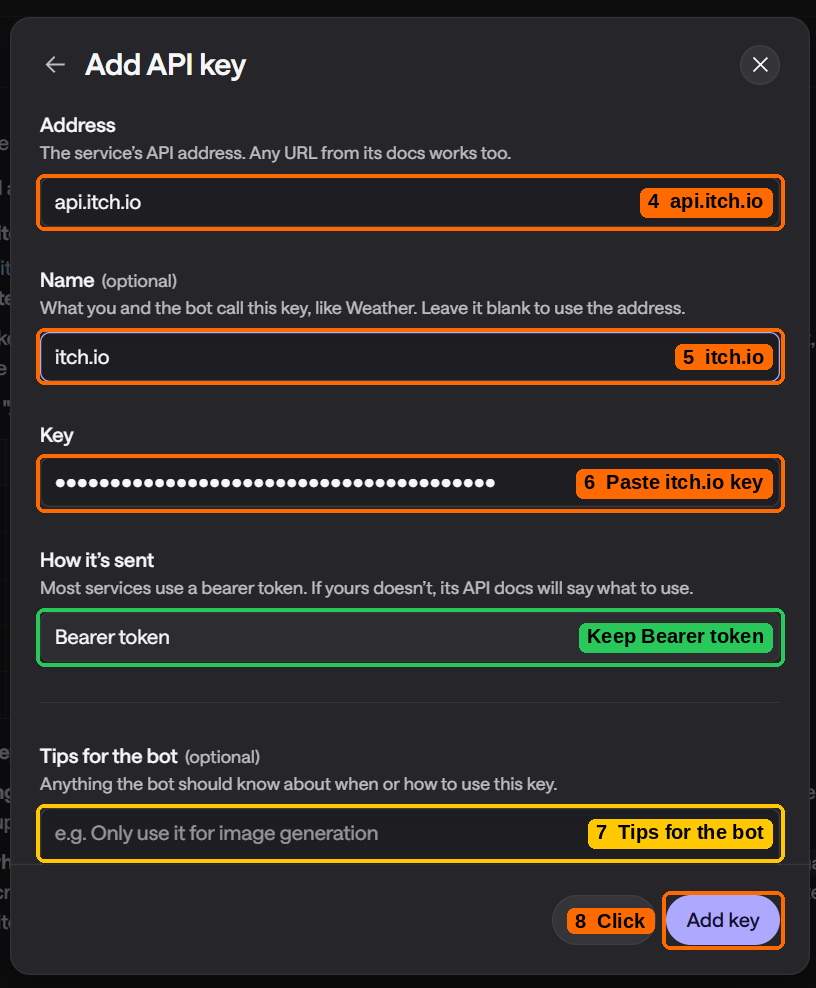
# Field What to enter 4 Address api.itch.io5 Name itch.io6 Key paste your itch.io API key – How it’s sent Bearer token (leave as is) 7 Tips for the bot see below 8 click Add key Tips for the bot. Copy this and replace
USERNAME/GAMEwith your own, likeyourname/my-game:itch.io API key for butler. Push builds from Bash to itch.io with: butler push <folder> USERNAME/GAME:<channel> (use html5 for web games). Ask before pushing to a game that's already public. -
When you open the key again, it should look like this. Only
api.itch.iois listed under Addresses, and that’s all butler needs.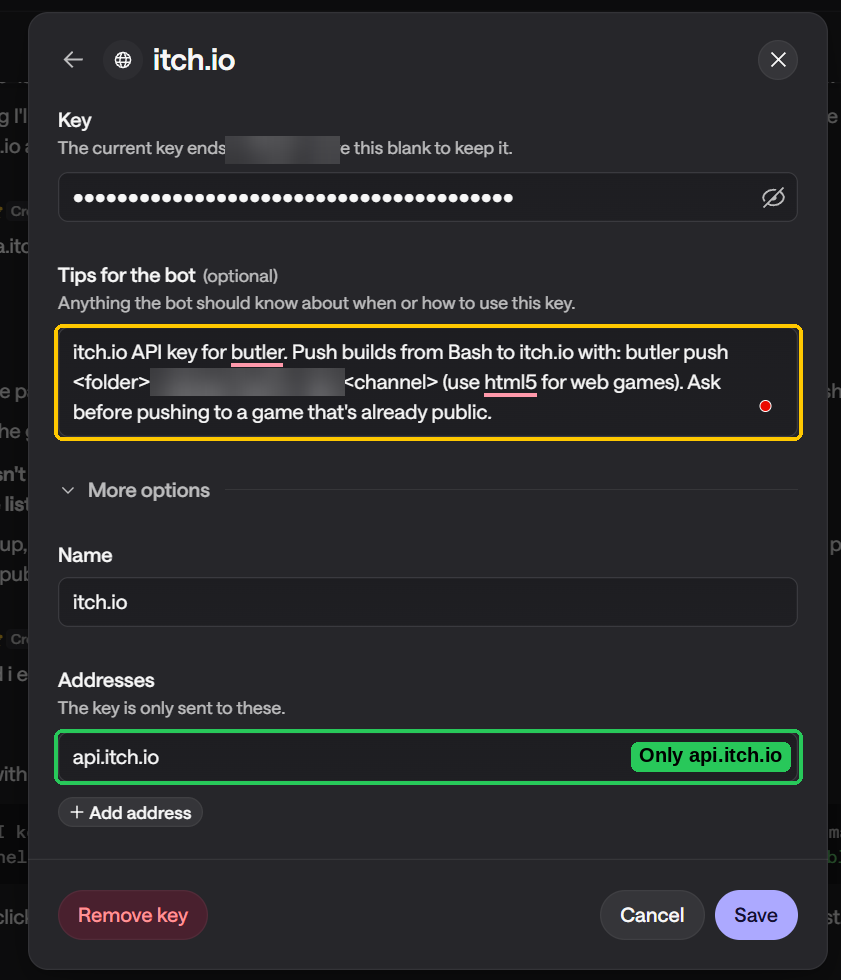
Part 3: Create a game page on itch.io
Skip this part if the game already has a page.
- Go to https://itch.io/game/new.
- Give it a Title. The Project URL becomes your game’s name for butler. For example,
https://yourname.itch.io/my-game→yourname/my-game. - Leave Visibility on Draft for now, then click Save.
Part 4: Ask the bot to push
Send the bot a message like:
The itch.io key is set up. Push my game to USERNAME/GAME on the html5 channel.
The bot will:
- check that the key works,
- install butler in the space, if it isn’t installed yet,
- upload the game (
butler push <folder> USERNAME/GAME:html5), - wait until itch.io confirms the build finished.
The bot asks before pushing to a game that’s already public, because the new version goes live right away.
Part 5: One-time game page settings (only on the website)
The itch.io API can’t change these, so you need to set them once on the website. After the first push:
- Open your game’s page and click Edit game.
-
Under Kind of project, change Downloadable to HTML.
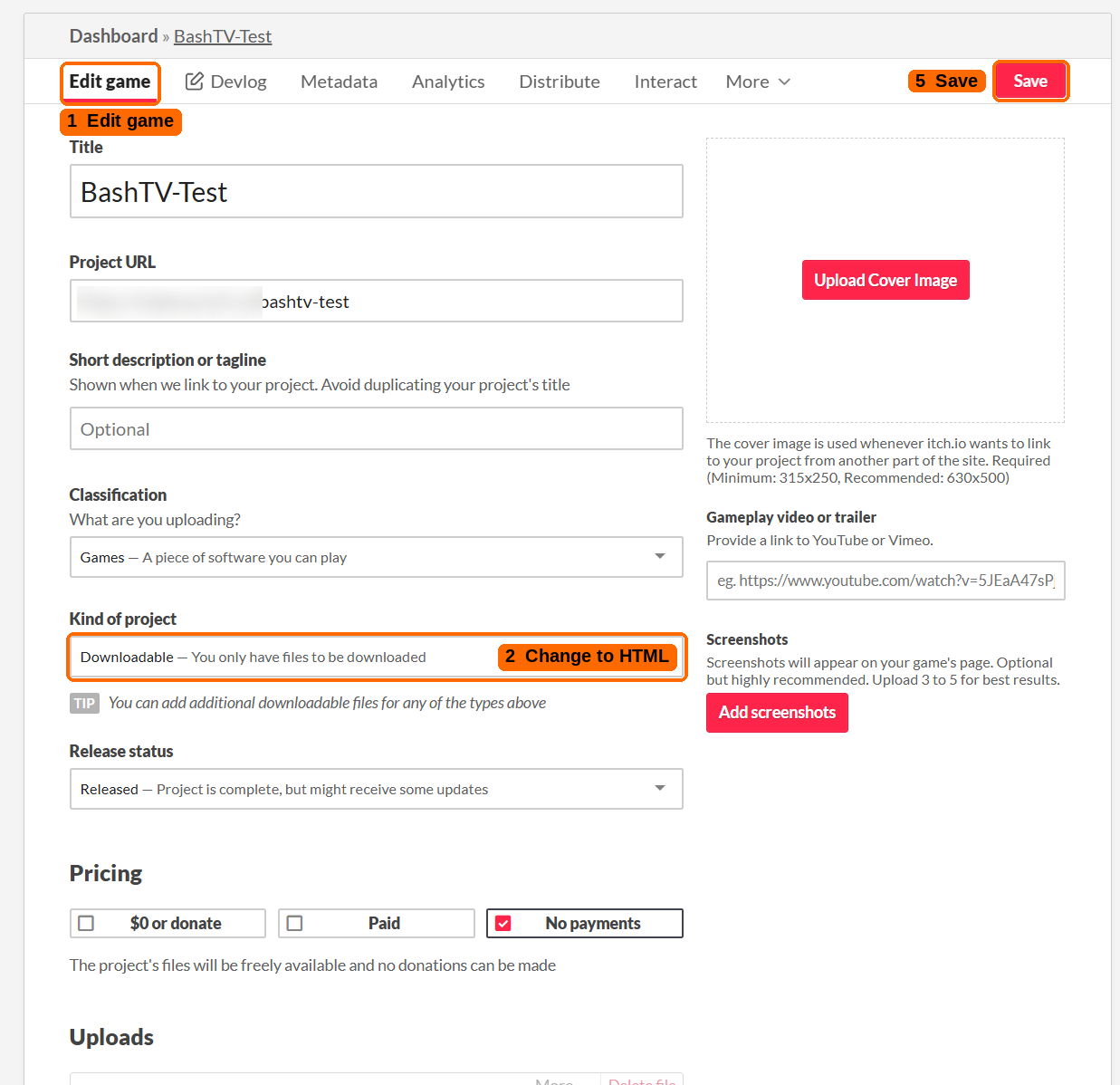
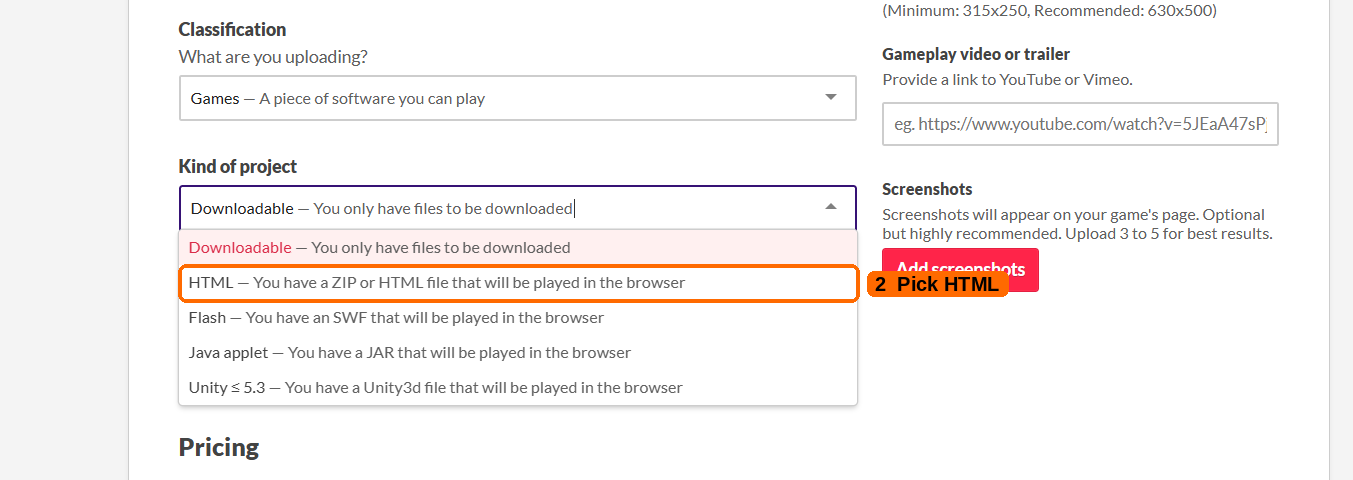
-
Scroll to Uploads. On the
html5file that butler pushed, check This file will be played in the browser. This checkbox only appears after step 2.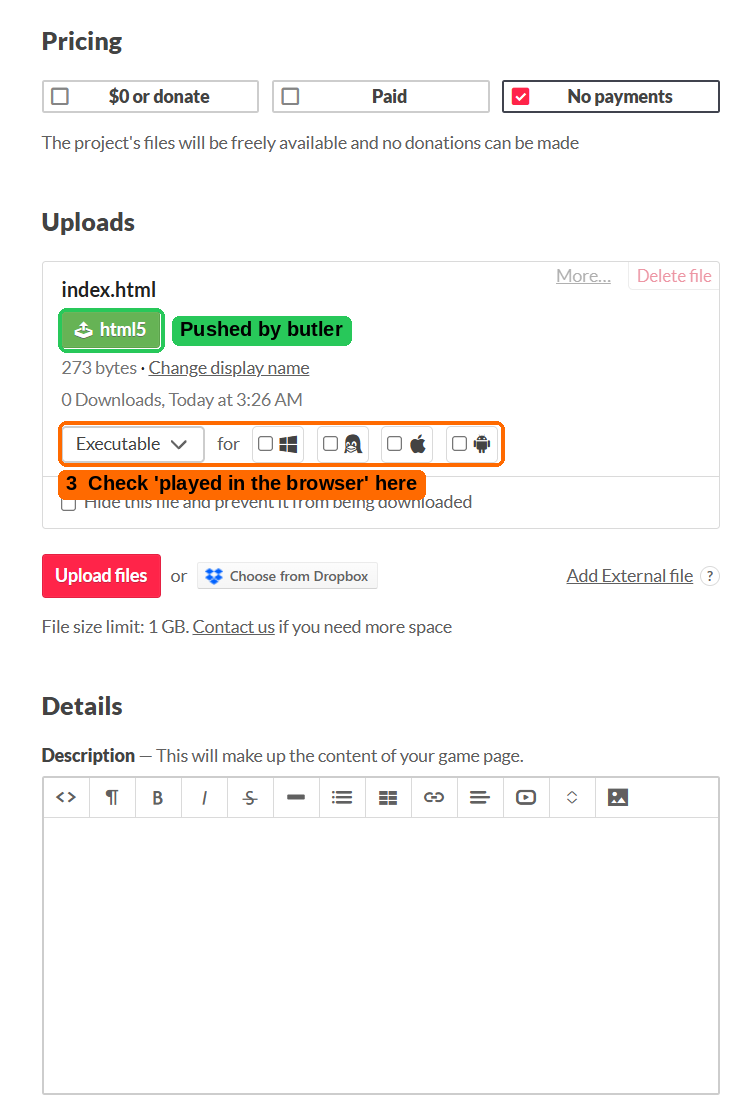
It should look like this once it’s checked:
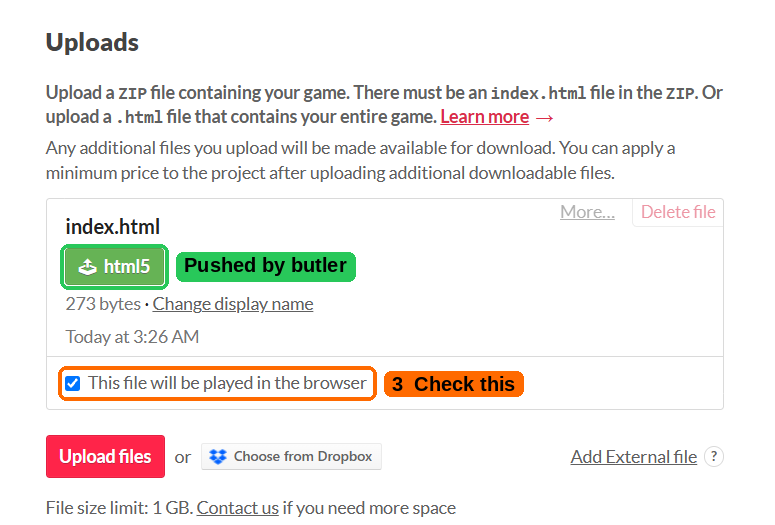
- Embed options appear after you check it. If the bot gave you an embed size, enter it here. Turn on the fullscreen button.
- Scroll down to Visibility & access. Choose Draft to test first, or Public to share it.
-
Click Save.
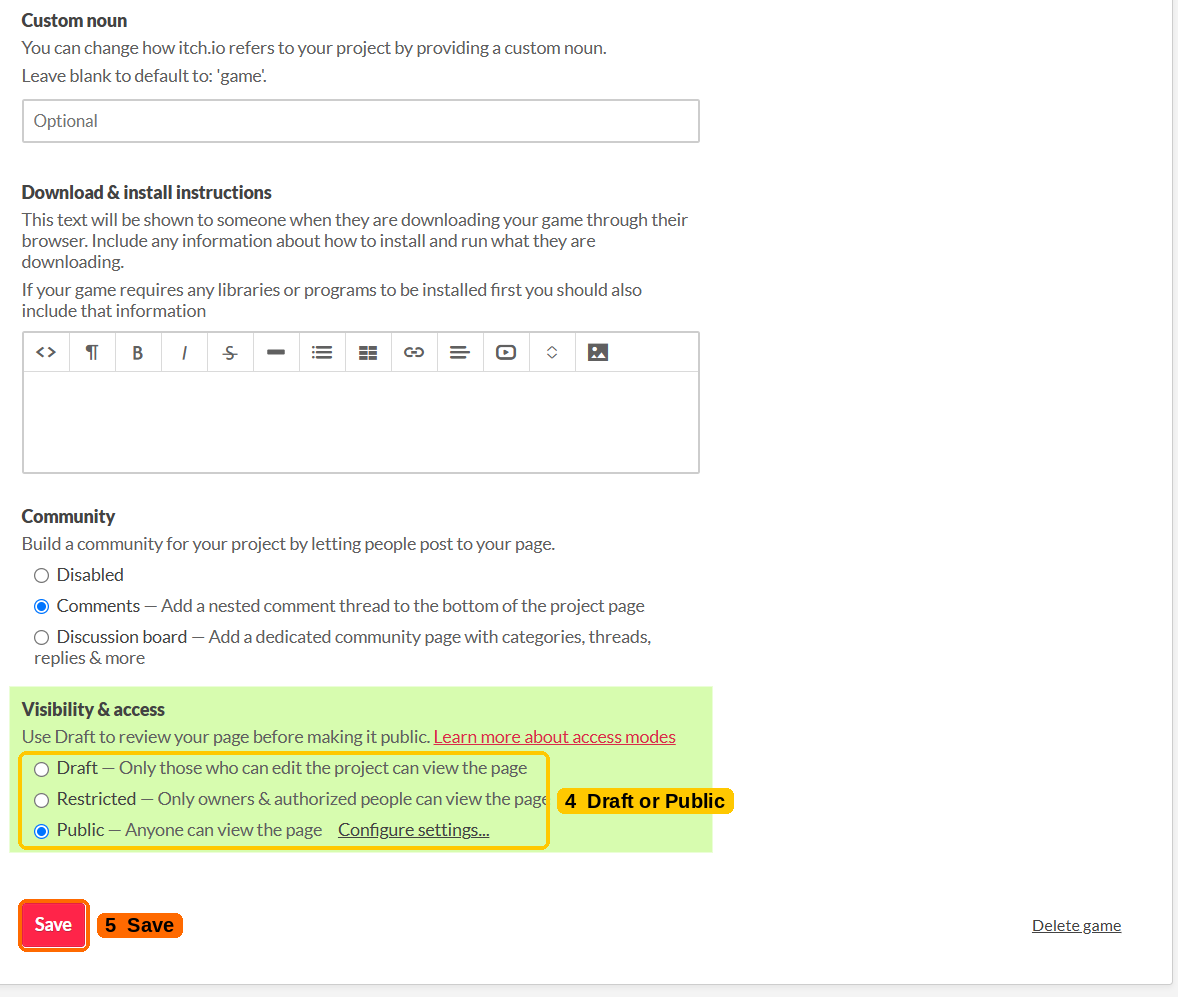
That’s it. Every later push to the same channel updates the game page automatically, with no more clicking needed.
Part 6: Check it worked
Open your game page. You should see a Run game button that plays the game in the browser. The bot can also check this for you. Just ask it to verify the itch.io page.
Troubleshooting
| Problem | Fix |
|---|---|
| Bot says “authentication required” | The key isn’t saved. Check the gear icon → API keys for itch.io, and that its address is exactly api.itch.io. |
| The page only shows Download, not Run game | Kind of project isn’t HTML, or the file isn’t checked as played in the browser (Part 5). |
| Can’t find “played in the browser” | Change Kind of project to HTML first. Then the checkbox appears. |
| The game page shows a 404 for other people | It’s still a Draft. Change Visibility to Public. |
| Bot pushed to the wrong game | Put the exact USERNAME/GAME in Tips for the bot and in your message. |
| The key leaked | Revoke it at https://itch.io/user/settings/api-keys, make a new one, and replace it in Bash. |
Bot skill
The bot’s instructions for this are saved in
skills/bash-and-publishing/bash-itchio-packager in the guide’s GitHub repo. Upload
bash-itchio-packager.zip from that repo to a new space to teach its bot the same steps.
Quick checklist
- itch.io API key generated
- Gear icon → API keys → Any API
- Address
api.itch.io, Nameitch.io, Bearer token - Tips for the bot filled in with
USERNAME/GAME - Add key clicked
- Game page created on itch.io
- Bot pushed the game with butler
- Kind of project → HTML
- This file will be played in the browser checked
- Save clicked, and Run game shows on the page